
Chrome Security Alert: Why Businesses Need to Verify Browser Updates
The news at a glance
Google released a desktop Chrome security update on November 9, 2026, that addresses CVE-2026-125350, a high-severity vulnerability the company says has been exploited in the wild. On November 10, the Canadian Centre for Cyber Security reported that the U.S. Cybersecurity and Infrastructure Security Agency (CISA) had added the issue to its Known Exploited Vulnerabilities catalog. Businesses should verify that employee browsers have received the appropriate update and have been relaunched. [1, 2]
For business owners, the important question is not simply whether automatic updates are enabled. It is whether every relevant browser installation, including those on remote and infrequently used devices, is running a supported, updated version. A report that an update was offered or downloaded is not necessarily proof that the running browser has applied it.
This article focuses on desktop Chrome and the November advisory. ChromeOS, mobile browsers, other release channels, and other Chromium-based products can have different update paths. Check each vendor’s current guidance for those products rather than applying desktop version numbers to every device.
What happened and why it matters
Google describes CVE-2026-125350 as a use-after-free vulnerability in Chrome’s XML component. In plain language, the issue involves how software handles a portion of memory after it has been released. Google rated the flaw high severity and said an exploit exists in the wild. That confirmation makes timely remediation important, but it does not mean that every organization using Chrome has been compromised. [1]
The CVE record describes a remote attacker potentially executing arbitrary code inside the browser sandbox through a specially crafted HTML page. Public information does not establish that this specific flaw alone escapes the sandbox or caused a particular company’s data theft. [3]
Browsers are a gateway to email, cloud applications, payroll portals, customer systems, and internal dashboards. An outdated browser on one laptop can therefore create a security concern even when the office network and other devices are well maintained. The response is to update promptly, verify completion, and investigate signs of compromise through the organization’s normal incident response process.
Which Chrome versions addressed the vulnerability
Google’s November 9 desktop Stable release listed 157.0.8103.50/.51 for Windows and macOS and 157.0.8103.50 for Linux. The Canadian advisory identifies desktop Stable versions prior to those releases as affected. Google also listed CVE-2026-125350 among fixes in Extended Stable 156.0.8078.96 for Windows and macOS. [1, 2, 4]
These are the original fixed releases for this advisory, not a recommendation to stop updating at those versions. Install the latest supported security update available for the device’s operating system and assigned release channel. Later versions may contain additional security fixes. An Extended Stable deployment has its own release cadence, so a lower major version does not automatically mean it lacks this particular fix.
IT teams should identify both the operating system and release channel before comparing version numbers. For ChromeOS, Android, iPhone, iPad, and other browsers based on Chromium, consult the relevant product’s current release notes and management guidance. Do not assume that a Chrome desktop build number proves another product is protected.
How employees can check Chrome
On a Windows or Mac desktop, open Chrome, select the three-dot menu, choose Help, and then About Google Chrome. Chrome checks its version and may begin downloading an available update. Follow the on-screen instructions and relaunch the browser when prompted. Save work first, particularly in web applications where unsaved changes may not be restored.
After relaunching, return to About Google Chrome and confirm the displayed version. If the browser is managed by your employer, follow the organization’s update instructions and contact the IT team if the update is unavailable, fails, or the relaunch prompt persists. Employees should not change enterprise policies or install software from an unsolicited pop-up to work around a problem.
A message saying that Chrome is managed does not itself confirm the update is complete. Likewise, an employee’s confirmation that they clicked an update prompt is useful but should not replace central verification where management and reporting are available. A screenshot or reported version can help resolve exceptions when a device is outside the management system.
Why centrally managed updates need verification
A central update policy helps businesses apply consistent settings across managed browsers, but it is only one part of an effective process. Devices may be offline, an update may be delayed by a policy or technical error, and an employee may leave Chrome open without relaunching. Version pinning, update suppression windows, and separate browser installations can also complicate the picture.
Google’s Chrome management tools can report browser versions when reporting is enabled. Administrators can review Devices > Chrome > Reports > Versions in the Google Admin console, subject to the appropriate privileges and setup. Google notes that reports reflect devices or browsers that have reported recently, can be delayed, and may count multiple browser installations on one device separately. A reporting dashboard is valuable evidence, but it is not a complete inventory of devices that have never enrolled or have stopped reporting. [5]
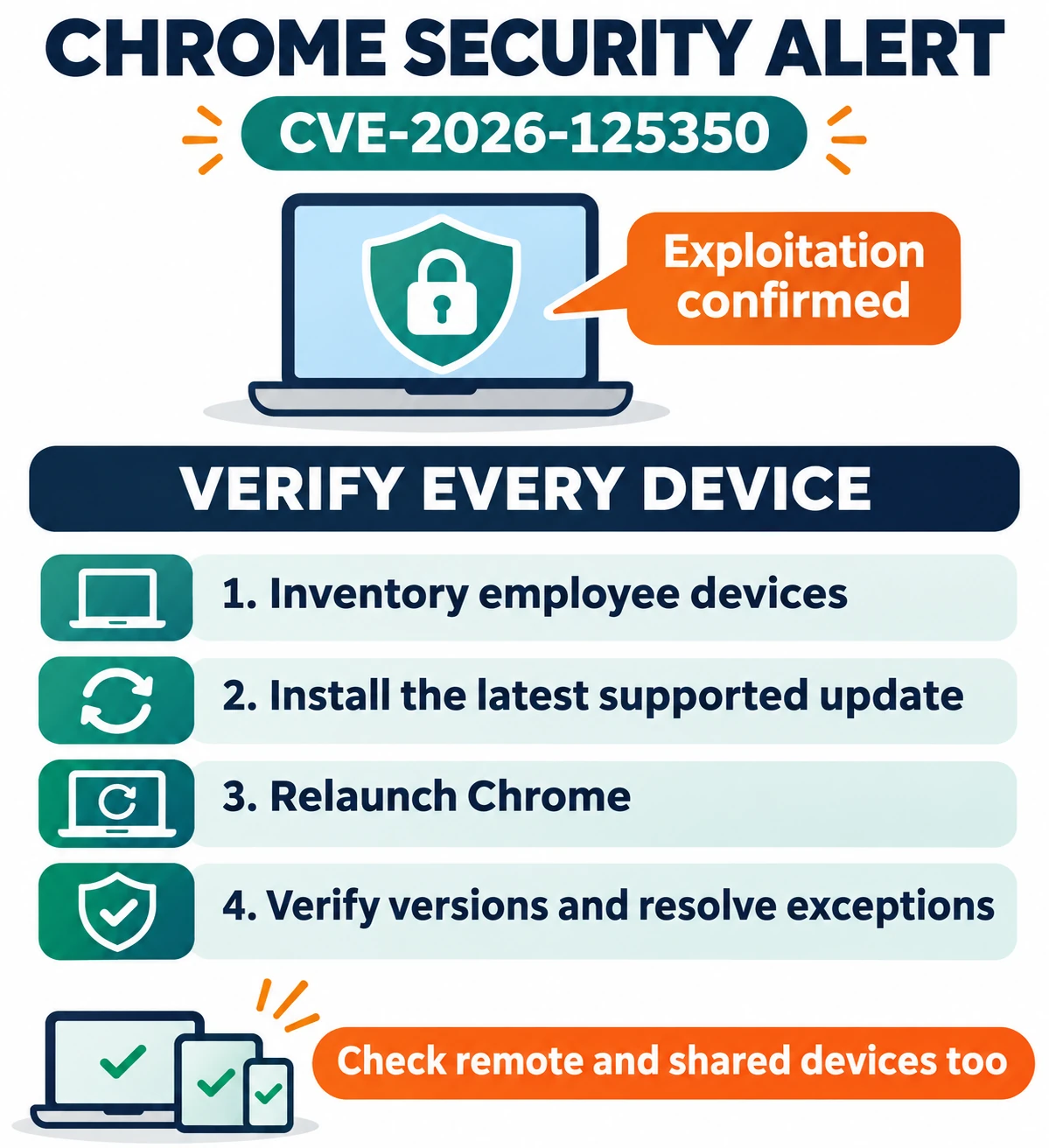
For an urgent vulnerability, compare the update report with an independent inventory of devices expected to access business systems. Identify browsers below the applicable fixed release, pending relaunches, failed updates, stale reports, and devices that are missing entirely. Assign an owner and follow-up date to each exception, then check again after remediation rather than closing the task when a deployment is initiated.
Google also supports managed relaunch notifications and policies for desktop Chrome. A business can set a relaunch requirement and notification period appropriate to its environment. Warn employees to save work, account for business-critical sessions, and test the policy before broad deployment. Google’s documentation notes that a recommended relaunch can be dismissed, leaving the older browser running until the user relaunches. [6]
A practical response checklist for IT teams
- Establish scope. Identify company-owned desktops and laptops, remote workers, shared workstations, temporary devices, and other endpoints that access business applications. Include each installed Chrome instance and note its operating system and release channel.
- Confirm policy. Check that updates are enabled and that version pins, deferral settings, network restrictions, or maintenance windows are not preventing the required security release. Use your approved endpoint management tools and change process.
- Deploy and communicate. Deliver the latest supported update for each channel. Tell employees why a relaunch is needed, when it should happen, how to save work, and where to report a problem. Use established internal communication channels so staff can distinguish legitimate instructions from phishing.
- Verify installed and running state. Review current version information, pending updates, and recent check-in times where your tools provide them. Reconcile reports with the device inventory and investigate devices that have not reported. Confirm that Chrome has been relaunched where necessary.
- Resolve exceptions. Contact users of offline or noncompliant devices, troubleshoot update failures, and record the owner, reason, temporary controls, and target resolution date. Limit business access to an unpatched device when your organization’s risk policy and technical controls permit it.
- Close and monitor. Recheck previously noncompliant installations, retain an appropriate record of the response, and continue routine monitoring for later security releases. A completed response should show what was checked, what remains unknown, and who is responsible for unresolved devices.
Remote workers and personally owned devices
A laptop that rarely connects to the office network may miss a network-dependent management process or remain absent from a report. Remote staff should know how to connect to required management services, respond to update requests, and contact support when a device has not checked in. The IT team should verify actual coverage instead of assuming that remote means unmanaged or that managed means currently connected.
Personally owned devices require a different conversation. An employer may not have authority or technical visibility to manage a personal browser, and a work profile does not necessarily provide control over every application on the device. Use the organization’s written bring-your-own-device policy, privacy requirements, and available access controls. Where verification is not possible, consider approved alternatives such as a managed device or restricted access, consistent with company policy.
Shared devices deserve attention too. A machine used for reception, shipping, presentations, or occasional administrative tasks can be overlooked when responsibilities are unclear. Give each shared device an owner and include it in the same inventory and exception process as employee laptops.
What to do if an update is missing or an incident is suspected
If Chrome will not update, record the device name, operating system, browser channel, displayed version, error message, and last successful check-in. IT can review update policies, network access, updater health, installation scope, and vendor guidance. Avoid disabling security controls or downloading a browser installer from a third-party link merely to make the warning disappear.
An outdated browser is an exposure, not proof of a successful attack. If there are credible indicators of suspicious activity, follow the organization’s incident response plan: notify the designated security contact, preserve relevant information, and isolate the device when appropriate. Coordinate decisions about passwords, sessions, and forensic investigation with qualified responders. Updating fixes the vulnerable software but does not by itself determine whether previous compromise occurred or remove an attacker already present.
CISA’s catalog is a useful prioritization signal because it identifies vulnerabilities known to have been exploited. Its binding directives and deadlines apply to covered U.S. federal civilian agencies; private businesses should use their own obligations and risk-based timelines rather than assuming a federal deadline is a universal legal requirement.
Frequently asked questions
Is CVE-2026-125350 being exploited?
Yes. Google stated that an exploit exists in the wild, and the Canadian Cyber Centre reported CISA’s addition of the CVE to its known-exploited catalog on November 10. Public confirmation of exploitation does not establish that your particular business was targeted. [1, 2]
Does Chrome update automatically?
Chrome can update automatically, but enterprise settings, operating system, connectivity, and update availability affect the process. A browser relaunch may be required to apply an update. Verify the version after relaunching and investigate devices that do not report.
Is installing the November 9 version enough?
The original fixed release addresses this CVE on the specified desktop channel and platform, but it is not necessarily the latest secure version. Install the latest supported release for your channel to obtain subsequent fixes.
Do other Chromium-based browsers need attention?
They may be affected by Chromium vulnerabilities, but product-specific applicability and fixed versions differ. Check each browser vendor’s advisory and update instructions; do not use Chrome’s desktop version numbers as a substitute.
Should we force everyone to restart immediately?
Treat an actively exploited issue with urgency, but use a managed relaunch plan that accounts for unsaved work and operational requirements. Where immediate updating is not possible, document the exception, use suitable temporary access restrictions, and resolve it promptly.
Make browser updates part of a wider security process
The November Chrome advisory is a reminder that an update policy is only as strong as its coverage and verification. For organizations in Raleigh, Cary, Durham, the wider Triangle, and New York City, that means looking beyond office computers to the full mix of remote, shared, and authorized personal devices that reach business systems.
Computerbilities can help businesses evaluate their IT support and cybersecurity needs, including how browser updates fit into a broader device management process. To discuss your environment and identify practical next steps, visit https://computerbilities.com/ and contact the team.